Trade
Single Leg and Stocks Trade
-
How do I launch a Trade ticket in Fidelity Trader+™ Desktop?
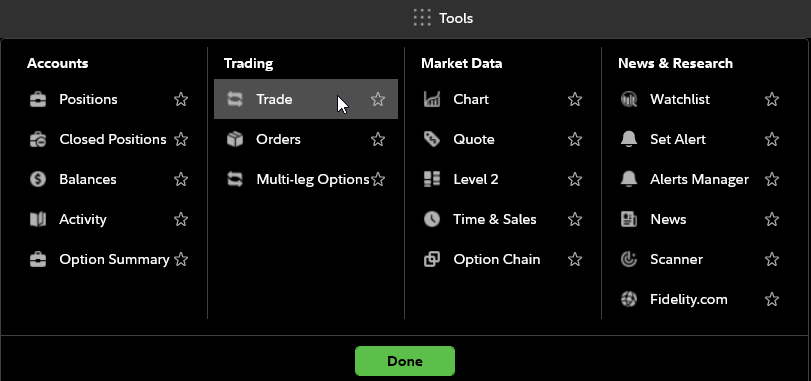
There are many ways to launch a Trade ticket in Fidelity Trader+™ Desktop. To start, go to the Tools menu and select Trade. This will open a Trade ticket window. The default tab in the Trade ticket will be stocks. You can also launch a Trade ticket using the right-select functionality within many other tools. For example, right-select anywhere within a Chart tool and select the "Buy" or "Sell" action to launch a Trade ticket. From the Positions tool, you can also right-select on any position to initiate a trade.
-
How do I select the account I want to trade with in Fidelity Trader+™ Desktop?
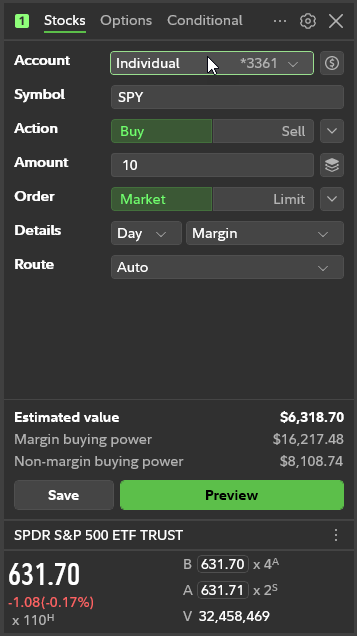
To select the account you want to use to trade with in Fidelity Trader+™ Desktop, choose from the drop-down selection next to the Account row (1) in the Trade Ticket. With the Options tab selected, only option enabled accounts will appear.
-
How do I change the amount type I am trading in the Trading Ticket in Fidelity Trader+™ Desktop?
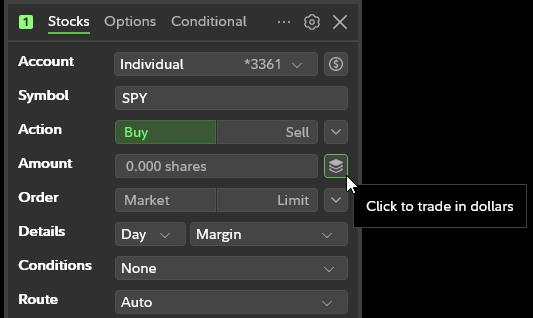
Next to the Amount entry field in the Trade Ticket in Fidelity Trader+™ Desktop is a selector that defaults to shares. Selecting it changes the icon and lets you trade in dollar amounts. Selecting the dollar symbol lets you change back to shares. Enter shares in whole numbers, or a whole number with up to 3 decimal places: for example 3.450. All amounts must be $1.00 or greater.
-
How do I select order type in the Trade Ticket in Fidelity Trader+™ Desktop?
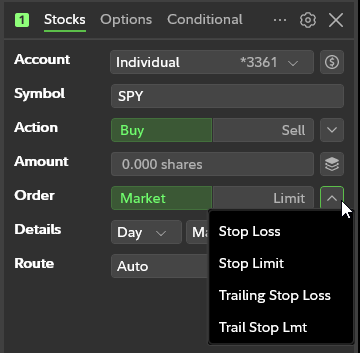
Fidelity Trader+™ Desktop Trade ticket allows for trading in dollar amounts or shares. For trading in dollar amounts, you can select market or limit orders. For trading in share amounts, you can select market, limit, or additional order types, such as stop loss orders. Select the order drop-down arrow for additional order types.
-
How do I follow bid or ask on a limit order in Fidelity Trader+™ Desktop?
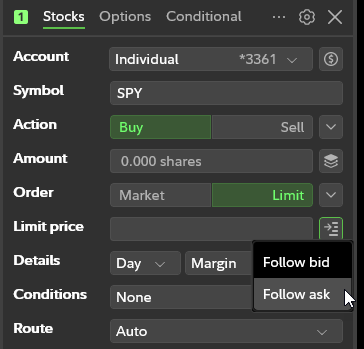
When limit order is selected in the Fidelity Trader+™ Desktop Trade ticket, a drop-down arrow will appear. This will allow you to have a moving limit order that follows the streaming bid or ask.
-
How do I edit my Trade settings in Fidelity Trader+™ Desktop?
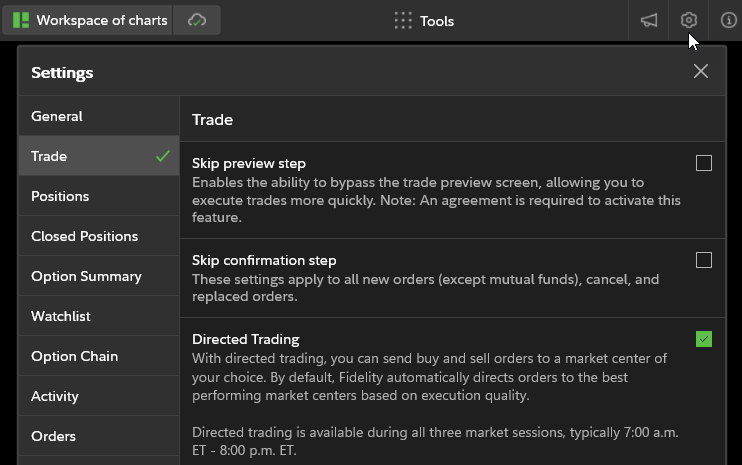
Selecting the gear icon in Fidelity Trader+™ Desktop Trade ticket will launch your Trade settings. Trade settings include the ability to skip the preview step and skip the confirmation step. These settings are for traders who want to execute their trades faster. Please note that an agreement must be acknowledged due to the increased risk of mistakes that can occur without having a preview to confirm your order details.
Multi-Leg Options
-
How do I place a multi-leg options trade in Fidelity Trader+™ Desktop?
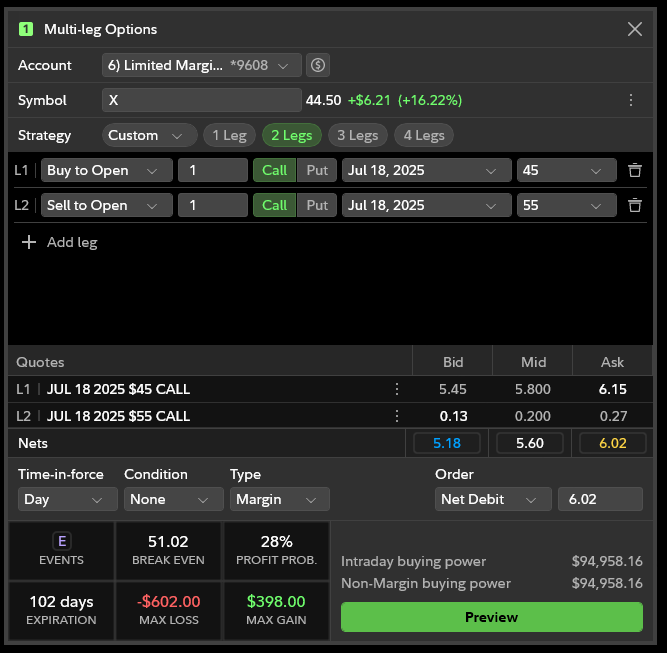
To place a multi-leg options trade in Trading in Fidelity Trader+™ Desktop, start by accessing the Tools menu, and selecting Multi-leg Options. The Trade ticket enables you to enter details for up to 4 different options contracts simultaneously. By default, there will be fields for the first 2 legs. Fill in these trade details to trade strategies such as spreads, for example. If you wish to trade more than 2 legs at a time, select the "3 Legs" or "4 Legs" button for additional data fields. Once all your trade details are entered, remember to preview and then place order to successfully submit your trade.