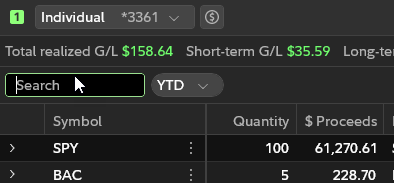
Positions
Open Positions
-
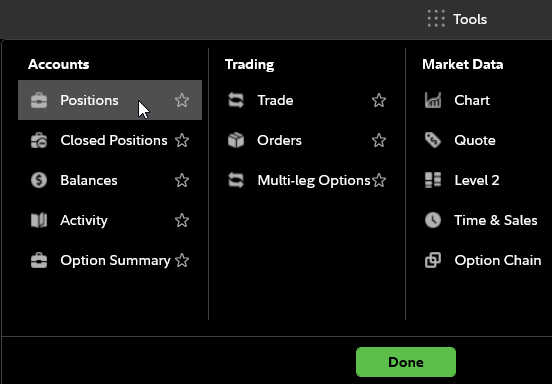
How do I access my open positions in Fidelity Trader+™ Desktop?
Open positions are shown in the Positions tool window within Fidelity Trader+™ Desktop.
-
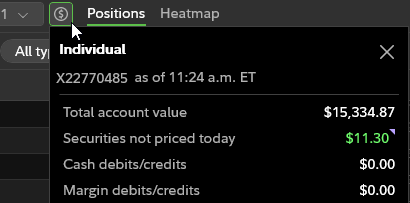
How do I view my account balance in the positions tool in Fidelity Trader+™ Desktop?
In Fidelity Trader+™ Desktop, choose an account from the drop-down, and then select the dollar icon next to the account name to view current balances.
-
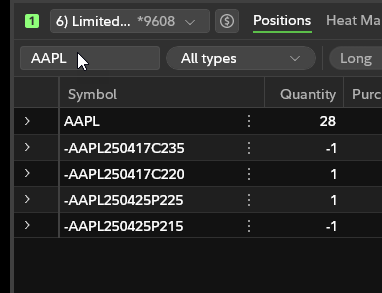
How do I sort my positions by symbol name in Fidelity Trader+™ Desktop?
In the Fidelity Trader+™ Desktop Positions tool, input the securities symbol in the search bar.
-
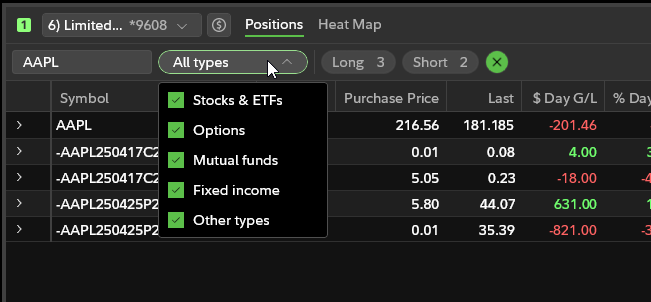
How do I sort positions by security type in Fidelity Trader+™ Desktop?
In the Fidelity Trader+™ Desktop Positions tool, utilize the security type drop-down. The default setting is "All types." Select the drop down-menu and check the boxes of the securities you want visible.
-
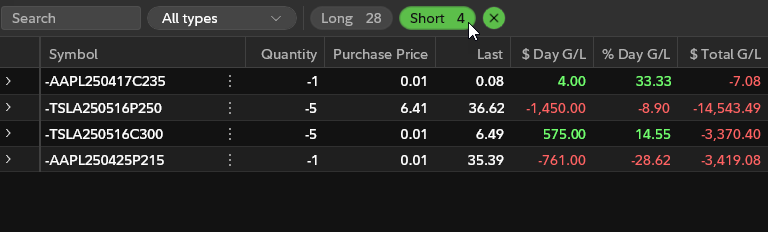
How do I view only long or short positions in Fidelity Trader+™ Desktop?
In the Fidelity Trader+™ Desktop Positions tool, select either the long or short positions filter. Selecting either of these will only show those positions.
-
How do I hide filters in Fidelity Trader+™ Desktop?
Selecting the button with the double up arrows next to the filter icon in Fidelity Trader+™ Desktop will hide the filters and make the button double down arrows.

-
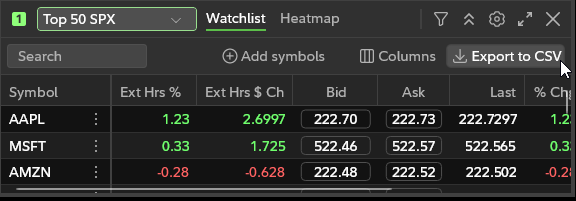
How do I export to a .CSV file in Fidelity Trader+™ Desktop?
The Export to .CSV button in Fidelity Trader+™ Desktop allows you to download a .CSV file by choosing a download location and name.
-
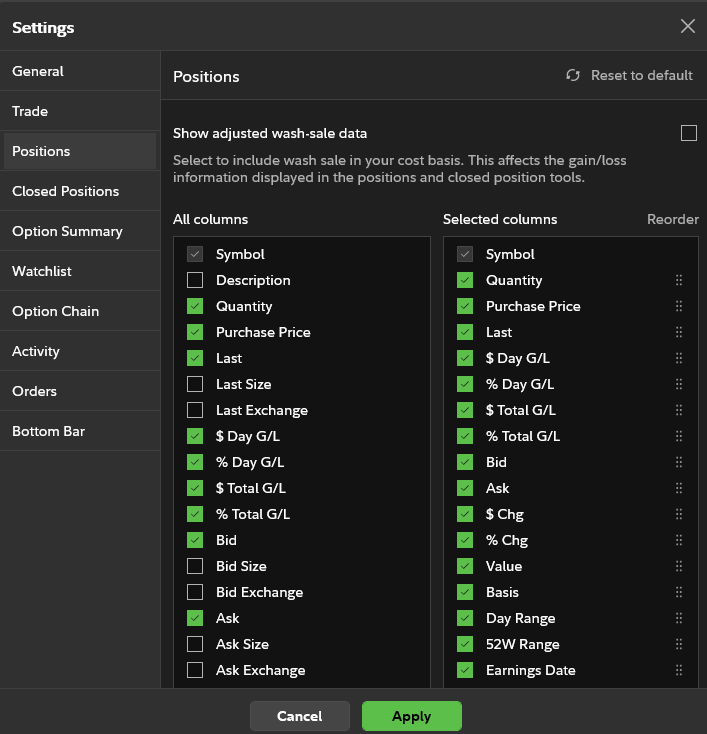
How do I add and remove columns from tool panel in Fidelity Trader+™ Desktop?
Selecting the gear icon on the top right side of the tool panel in Fidelity Trader+™ Desktop opens the settings for that tool. Add or remove columns by selecting or deselecting checkboxes of what you want to see.
-
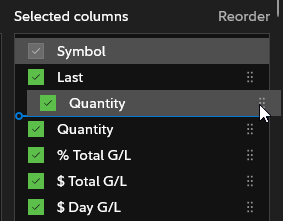
How do I change the order of the columns in the tool panel in Fidelity Trader+™ Desktop?
Within the settings for a specific Fidelity Trader+™ Desktop tool, select and drag column name to arrange or rearrange order of columns.
-
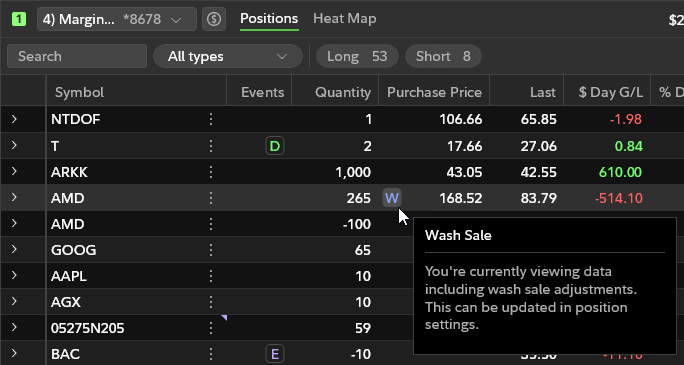
How do I show and hide wash-sale data in Fidelity Trader+™ Desktop?
In the Positions tool settings within Fidelity Trader+™ Desktop, select or deselect "Show adjusted wash-sale data" to show or hide this information. This will appear as a W symbol next to purchase price in tool panel.
-
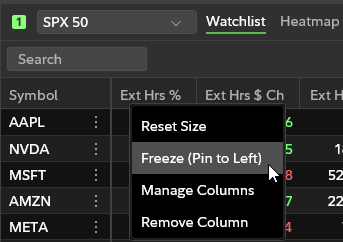
How do I pin a column to the left of the tool in Fidelity Trader+™ Desktop?
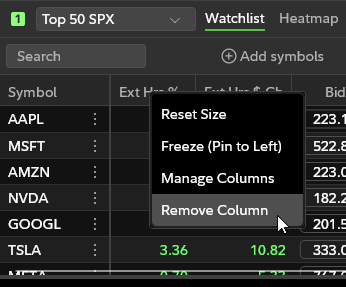
Right-selecting the column header in Fidelity Trader+™ Desktop will open a drop-down that allows you to reset column size, pin column to left, remove column, or open settings to manage columns.
-
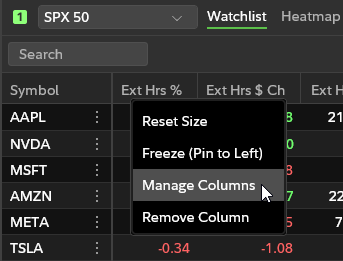
How do I manage columns within tool in Fidelity Trader+™ Desktop?
Right-selecting the column header in Fidelity Trader+™ Desktop will open a drop-down that allows you to reset column size, pin column to left, remove column, or open settings to manage columns.
-
How do I remove a tool column in Fidelity Trader+™ Desktop?
Right-selecting the column header in Fidelity Trader+™ Desktop will open a drop-down that allows you to reset column size, pin column to left, remove column, or open settings to manage columns.
Closed Positions
-
How do I access my closed positions in Fidelity Trader+™ Desktop?
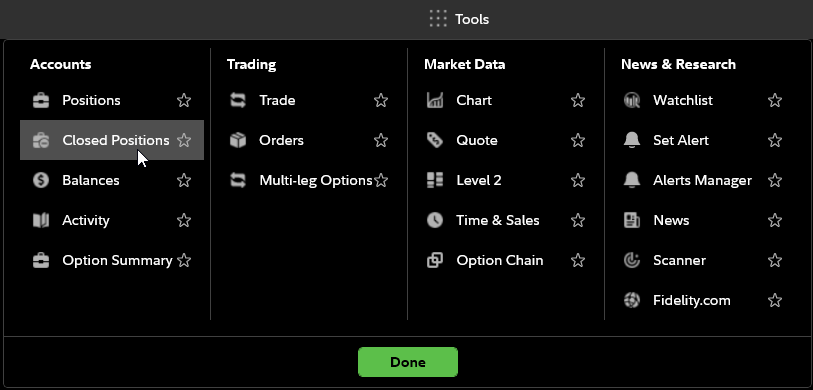
Under the Tools menu drop-down in Fidelity Trader+™ Desktop, choose Closed Positions under the Accounts column.
-
How do I filter my closed positions in Fidelity Trader+™ Desktop?
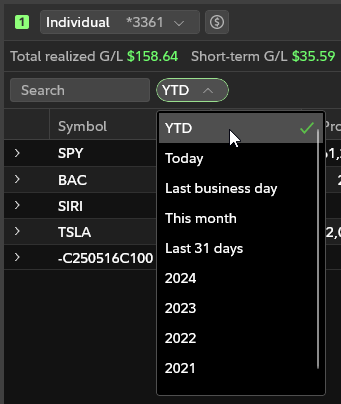
In Fidelity Trader+™ Desktop, you can filter Closed Positions by the drop-down next to the Search input. Filter options include: Year to Date (YTD), Today, Last business day, This month, Last 31 days, or by year.
-
How do I clear my filters in closed positions in Fidelity Trader+™ Desktop?
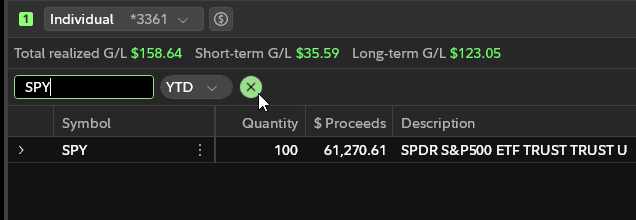
When a filter is applied in Fidelity Trader+™ Desktop, a clear filters icon (a green circle with an X) appears next to the filter drop-down. Selecting this icon removes all filters.
-
How do I filter my closed positions by symbol in Fidelity Trader+™ Desktop?
To filter closed positions by symbol in Fidelity Trader+™ Desktop, enter the symbol in the Search field of the closed positions window.