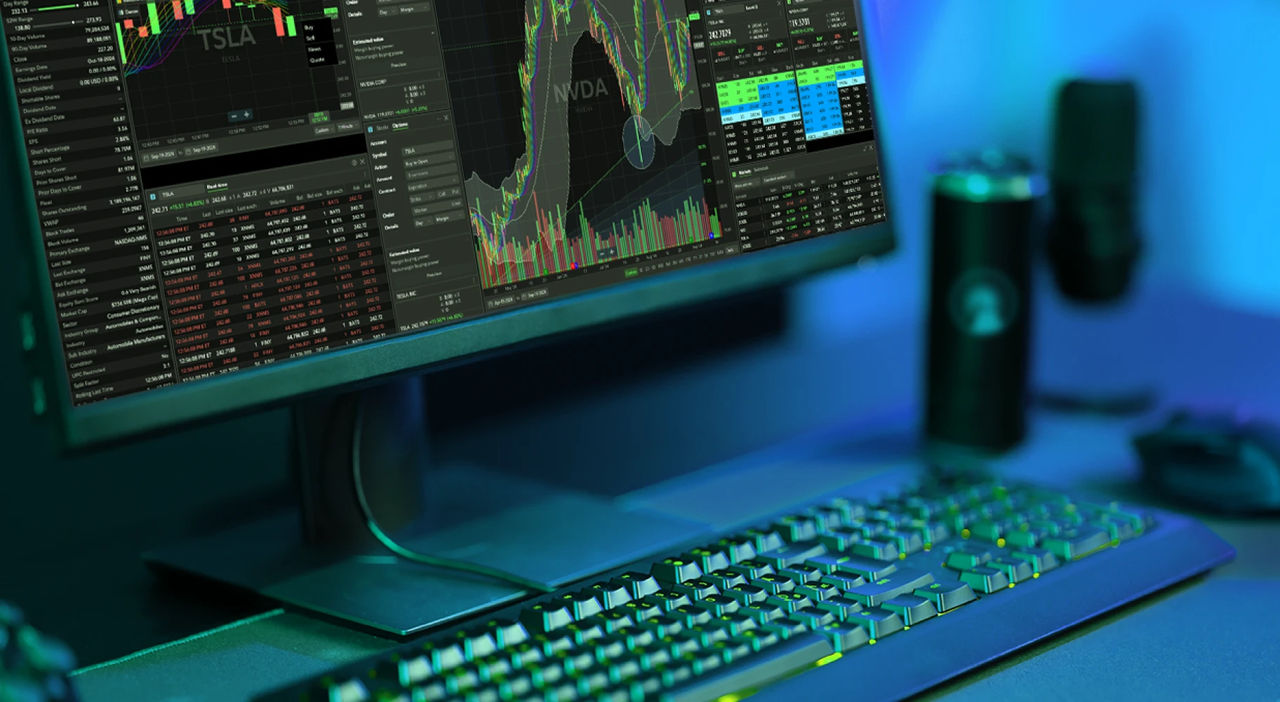
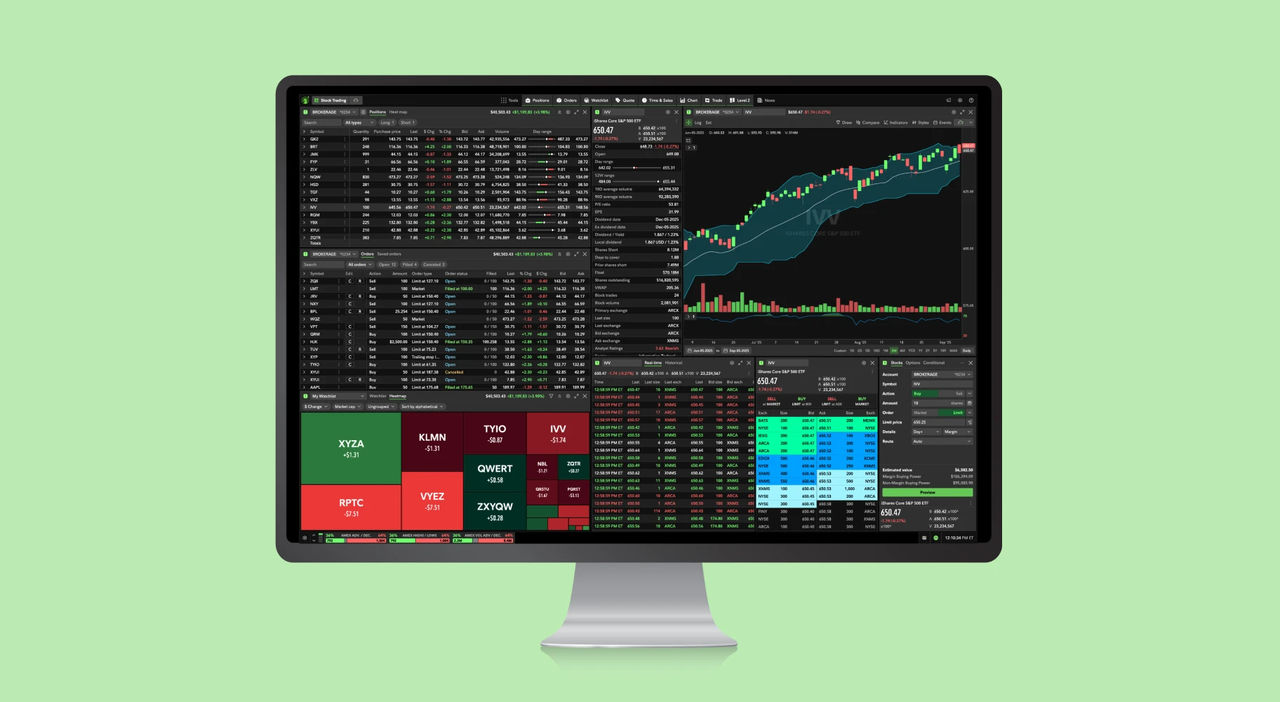
Transitioning from Active Trader Pro® to Fidelity Trader+® Desktop

If you're an ATP user looking to migrate to Fidelity Trader+®, we're here to help. We’ll provide key updates to the new and evolving platform, important resources for support, and guides to show you next steps.

How to move from ATP to Fidelity Trader+

Start by downloading Fidelity Trader+ Desktop
Install the application and sign in with your Fidelity credentials. Click the book icon in the top right corner and select "Get Started" to go through the onboarding tutorial.

Review what transferred automatically
When you make the transition, the following transfer over automatically: your notes, watchlists, positions, orders, and account-related data.

Enhance your workspace
With Fidelity Trader+, enjoy a modern, widget-based layout that lets you create separate windows, save layouts for workflows, and more. Refer to your ATP setup to help you make the switch.

Explore Fidelity Trader+

How to move from ATP to Fidelity Trader+

What’s happening with your notes
Your notes on positions and watchlists will migrate over to Fidelity Trader+.

How to set them up in Fidelity Trader+
To start, add the “Notes” column in “Settings” for watchlist and for positions. You will then see a small preview of the note directly in the grid. Click on the note, and a pop-up will appear so you can read the entire note.

Explore Fidelity Trader+

How to move from ATP to Fidelity Trader+

What’s happening with your watchlists
Watchlists will migrate from ATP to Fidelity Trader+. No action on your part is required.

How to edit your watchlists in Fidelity Trader+
Access your watchlists by opening the “Watchlist” tool in the “Tools” menu. Click the Columns icon, or go to “Settings” to add or remove columns so you get the data that is important to you.

How to enhance your watchlist experience
Use the “Heatmap” tab to get a visually dynamic overview of your watchlists. Also, you can now import your watchlists from a CSV file.

Explore Fidelity Trader+

How to move from ATP to Fidelity Trader+

What’s happening with your current charts
ATP charts will not transfer to Fidelity Trader+, but once you've created your charts in Fidelity Trader+ Desktop you can access them across all Fidelity Trader+ experiences.

How to set them up in Fidelity Trader+
To start, use the indicator menu to add your indicators. When you add an indicator, a pop-up box will appear so you can set the color and style of line, and add attributes like “Trading period.” Use the “Drawing” menu to add trend lines, draw support, and resistance. Then, you can save and name your template.

How to enhance your charting experience
Want to make a copy of your chart and modify it? Select "Save as", create a new template name, and you can make changes without affecting your original template.

Explore Fidelity Trader+

Fidelity Trader+ has more of what you need

Powerful enhancements

  • Integration with Fidelity Trader+ Web and Mobile
  • View & reactivate expired alerts
  • Screen sharing for optimal rep support

Fast and efficient trading

  • Keyboard hotkeys
  • Dollar and fractional trading
  • Trade-follow (bid/mid/ask)
  • Crypto integration
  • Saved orders

Cutting-edge research

  • LSEG research widgets
  • Extended-hours quote + closing value
  • Import your watchlist

How to use our improved trading features in Fidelity Trader+

We’ve taken the best of Active Trader Pro and moved it over to Fidelity Trader+. We’re continually working to make it even better, with your help.

Recreate directed trading

To create a similar consolidated experience (the Level 2 trade ticket, and time and sales were all in one tool) in Fidelity Trader+:


  • First, to enable directed trading, select “Settings” in the top-right corner
  • Choose the “Trade” option, then under “General” make sure  “Directed Trading” is enabled with a green checkmark
  • Select “Apply”
  • Next, in the “Tools” option under “Market Data,” select “Level 2” (L2), then select the “Tools” option again and select “Trade,” under “Trading”
  • You can also select “Tools” again and under “Market Data” select “Time & Sales”

Learn how to use the new Fidelity Trader+ platform

Watch helpful videos and read about how to get the most out of our most advanced trading platform.

Transition support resources

We’re here to help each step of the way. Reach out to us directly or access one of our always-on resources.

Level up your knowledge

From small classes and coaching sessions to large, multi-session webinars, you can take your knowledge to the next level.

Get started

Everything you need to set up and customize Fidelity Trader+

Learn how to launch, navigate, and tune your Fidelity Trader+ experience.

Explore user guide

Talk to us directly

Give us a call and we will help you get answers to your questions about moving to Fidelity Trader+.

Call 800-343-3548

Explore the new Fidelity Trader+ platform

Get more information about Fidelity Trader+ and how the different features and capabilities flex across your devices.

Investing involves risk, including risk of loss.

Images are for illustrative purposes only.

Fidelity Brokerage Services LLC, Member NYSE, SIPC, 900 Salem Street, Smithfield, RI 02917

1275322.1.0